AcademyTyping Ergonomics: Desk, Keyboard and Posture Checklist
Set up your chair, keyboard, screen and breaks the way OSHA and the UK's HSE recommend. A practical checklist for comfortable typing and practice.
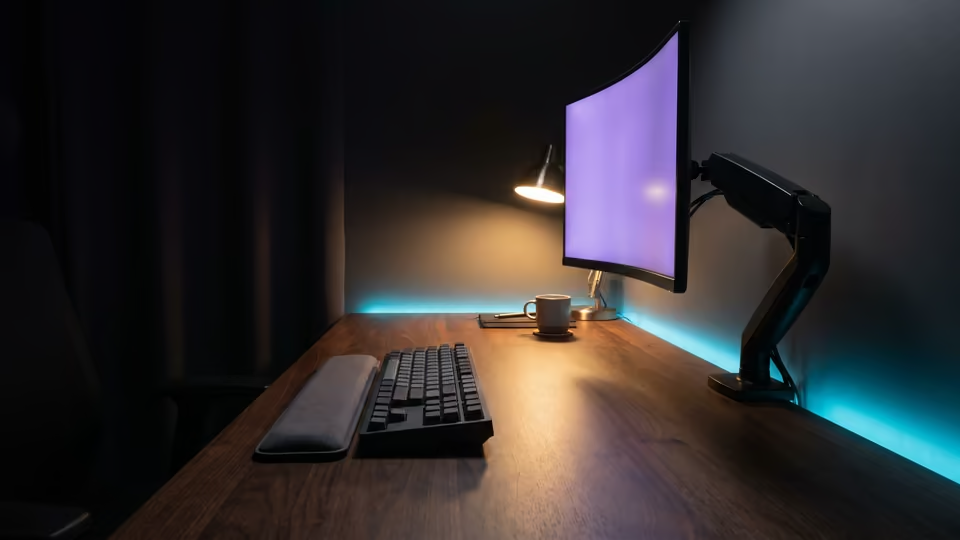
On this page15 sections
A good typing setup is mostly about avoiding awkward positions: bent wrists, raised shoulders, a screen you have to lean toward. This checklist follows official workplace guidance from the U.S. Occupational Safety and Health Administration (OSHA) and the UK Health and Safety Executive (HSE).
It is general guidance, not medical advice. If typing causes you pain, numbness or tingling, talk to a qualified health professional.
The neutral position
OSHA describes a neutral working posture as a comfortable position in which your joints are naturally aligned, and lists what it looks like at a computer:
- Hands, wrists and forearms straight, in line and roughly parallel to the floor.
- Head level, facing forward and balanced, generally in line with the torso.
- Shoulders relaxed, with the upper arms hanging normally at your sides.
- Elbows close to the body and bent between 90 and 120 degrees.
- Feet fully supported by the floor, or by a footrest if the desk height can’t be adjusted.
- Back fully supported, with lumbar support, whether you sit upright or lean back slightly.
- Thighs and hips supported and generally parallel to the floor, knees at about hip height and feet slightly forward.
Everything below is about getting your chair, desk, keyboard and screen to let you sit that way.
Chair
Start with the chair, because everything else is measured from where you sit. HSE’s checklist:
- Seat height that supports the front and back of your thighs equally; a cushion can raise you if the seat won’t go high enough.
- Back support for your lower back, from the chair itself or a cushion.
- A small gap, about 2 to 3 cm, between the front edge of the seat and the back of your knees.
If raising the chair to keyboard height leaves your feet dangling, OSHA’s answer is a footrest.
Race it now
Formats10-minute typing test
Find the speed you can sustain through ten minutes of continuous, data-heavy work.
- 10-minute test
- 1,000 common words
- punctuation

Keyboard height and position
- Height: adjust your chair and desk so your elbows are about the same height as the keyboard and hang comfortably at your sides (OSHA). HSE puts the keyboard just below elbow height.
- Distance: place the keyboard directly in front of you, close enough that your elbows stay near your body with your forearms roughly parallel to the floor (OSHA).
- Alignment: keep the screen and keyboard centered in front of you so you don’t twist your back (HSE).
Keyboard tilt and feet
Raising the back of a keyboard on its feet can bend your wrists upward. OSHA’s advice is to tilt only if it helps keep your wrists straight: slightly raising the back can help if you sit low relative to the keyboard, and raising the front can help if the keyboard sits low. In OSHA’s words, “do not use keyboard feet if they increase bending of the wrist.”
Wrist and palm rests
OSHA notes that opinions vary on wrist rests, but proper use has been shown to reduce muscle activity and help keep wrists neutral. The key word is proper:
- While you type, your hands should move freely and float above the rest.
- When you pause, the rest should meet the heel or palm of your hand, not your wrist.
- Choose a rest that is fairly soft and rounded, and match it to the height and slope of the keyboard’s front edge.
Mouse
Keep the mouse close. HSE puts it in line with your elbow, and OSHA notes that a mouse placed close to the keyboard minimizes repeated reaching. If your desk allows, OSHA also suggests leaving enough room to switch the mouse between hands, so the muscles of the free hand get a rest.
Screen position
- Distance: put the monitor directly in front of you, at least 20 inches away. OSHA gives a preferred viewing distance of 20 to 40 inches (50 to 100 cm) from your eyes to the screen; HSE describes about an arm’s length.
- Height: the top line of the screen should be at or below eye level (OSHA). HSE puts the top of the screen level with your eyes.
Laptops
A laptop joins the screen and keyboard, so you can’t put the keyboard at elbow height and the top of the screen at eye level at the same time. For prolonged use, HSE suggests a separate keyboard and mouse so the screen can be raised on a laptop riser or similar, or a separate display.
Breaks and movement
- Short and often. HSE’s guidance is to “take short breaks often, rather than longer ones less often”: for example, 5 to 10 minutes every hour is better than 20 minutes every two hours. It adds that there is no legal guidance on exactly how long or how often breaks should be.
- Change position. OSHA notes that working in the same posture for long periods is not healthy, however good the posture, and suggests small adjustments to your chair, stretching your fingers, hands, arms and torso, and standing up to walk around periodically.
- Micro-breaks. For highly repetitive computer work, OSHA suggests building short pauses into your sessions, such as a five-minute break from computer tasks every hour.
OSHA also explains why this matters for typists in particular: computer work offers little natural variation, and “a proficient typist can easily perform more than 18,000 keystrokes per hour.” Breaks are where the variation has to come from.
Standing and other postures
Upright sitting isn’t the only neutral posture. OSHA describes four reference postures: upright sitting; standing, with legs, torso, neck and head roughly in line and vertical; declined sitting, with the thighs sloping down from the hips; and reclined sitting, with the torso and neck straight and leaning back between 105 and 120 degrees from the thighs. It suggests doing some tasks standing. Whichever you use, the same rules apply: straight wrists, relaxed shoulders, the screen in front of you at a comfortable height. The variety is the point.
Applying it to typing practice
- Rest between tests, not during them. TypeTrance’s timed tests never pause, so take your break before you start the next one.
- Keep sessions short. Short, frequent practice sessions fit the guidance on breaks, and they suit learning too; how to type faster explains why.
- Set up before long tests. A 10-minute test is long enough for an awkward position to make itself felt.
- Keep your eyes on the screen. Looking down at the keys pulls your head out of the level, forward-facing position OSHA describes. Touch typing keeps your eyes, and your head, on the screen.
About special keyboards
Split, tented and other alternative keyboards are designed to promote neutral wrist postures. OSHA notes that they may be provided case by case, that users may need time to get used to them, and that “available research does not provide conclusive evidence that using these keyboards prevents discomfort and injury.” Choose one because it is more comfortable for you, not because it promises prevention. For switches, rollover and layouts, see mechanical keyboard basics.
Quick checklist
- Elbows about level with the keyboard and close to your body.
- Wrists straight, not bent up, down or sideways.
- Keyboard directly in front of you; feet down unless they help keep your wrists straight.
- Hands floating over the wrist rest while you type.
- Mouse close to the keyboard, in line with your elbow.
- Screen centered, 20 to 40 inches away, top at or slightly below eye level.
- Feet supported, back supported.
- Short breaks every hour: stand up and move.
Frequently asked questions
Should my wrists rest on the desk while I type?
Not while you type. OSHA's guidance is that your hands should move freely above a wrist rest while typing, with the heel or palm of the hand resting on it only during pauses.
How high should my keyboard be?
At about elbow height, so your elbows can hang comfortably at your sides and your wrists stay straight. The UK's HSE puts it just below elbow height.
How often should I take breaks?
Short and often. HSE says 5 to 10 minutes every hour is better than 20 minutes every two hours, and OSHA suggests building short micro-breaks into computer work.
Are ergonomic or split keyboards better?
They are designed to help keep your wrists in a neutral position, but OSHA notes that research does not conclusively show they prevent discomfort or injury. Try one if it feels better to you.
Is a laptop bad for typing posture?
For long sessions, a laptop forces a compromise between screen height and keyboard height. HSE suggests a separate keyboard and mouse for prolonged use, with the screen raised on a riser.
Sources
How this guide is made
The sources behind this guide are listed above with the date we last checked each one. A guide stays marked as a draft until an editor has reviewed it.
Scores on TypeTrance follow published rules: How WPM Is Calculated: The Formula and TypeTrance's Exact Rules and Flow Score: How the Experimental Rhythm Metric Works.
More in Guides
Draft pending editorial review
QWERTY vs Dvorak vs Colemak vs Workman: Layouts Compared
A fair, sourced comparison of QWERTY, Dvorak, Colemak, Colemak-DH and Workman: their history, design goals, a home-row model and what switching costs.

Draft pending editorial review
How to Break a Typing Plateau (and Know If You're on One)
Stuck at the same WPM for weeks? Check whether it's a real plateau, then change how you practice: accuracy, deliberate speed pushes, new text, spaced sessions.

Draft pending editorial review
Accuracy vs Speed in Typing: When to Slow Down
Should you slow down to type more accurately? How errors cost you under strict scoring, what research on typists shows, and a simple rule for practice.